
Highlight #1: What is Version Control?
Say you’re painting a portrait of a little red house and you want to embellish it with a bit of yellow in some spots. You walk out of the room and return with a freshly-opened can of yellow paint, but before you can sit back down, a raised floorboard stubs your toe, and the can goes flying—and splattering over your beautiful red house. The portrait is ruined--you don’t want to spend time scraping off the yellow paint, and you don’t want to spend time painting over it. If the painting was made on a digital computer, then thankfully, Version Control has the answer to your problems. The Version Control system records the changes you made to your painting over time and can bring back an earlier version of the portrait of the little red house before it met its yellow demise. Gee, wouldn’t that be useful on an actual canvas.
This topic interests me because I was curious to know how Version Control works, what it is, and what it is used for, aside from the fact that it is important to web design. It is relevant to the course because the use of web design may involve wanting to use a previous design of a site because it looks better than the current design. Through the use of Version Control, one may easily revert to his/her previous design.
Highlight #2: Different Kinds of Version Control
It’s important to know that Version Control systems can be used to track changes in files in different ways.
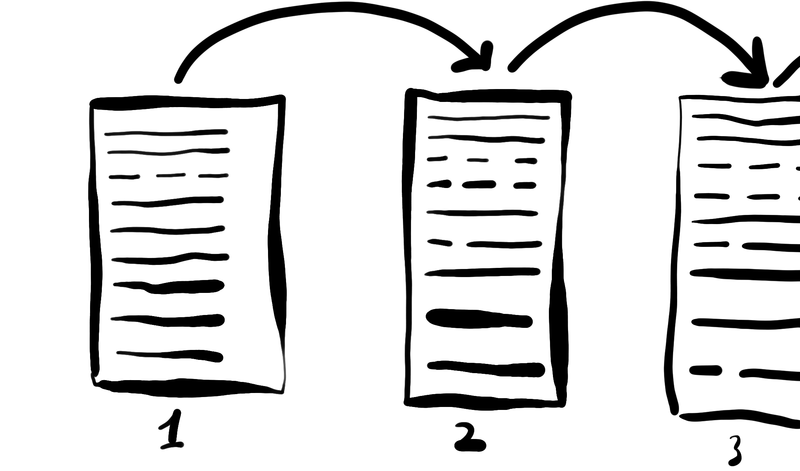
In a Local Version Control System, every time you save the file after making changes, you save it to a different directory (Ex. Saving an updated Version 1 file in the same folder as Version 1 but calling the updated one “Version 2” instead).
The Centralized Version Control System (CVCS) is the standard system used in version control. In a Centralized Version Control System, a single server is responsible for holding all the versions of the same file, and clients can check out those files from that single server. It’s a bit similar to a number of people going into a library and checking out different editions of the same textbook.
Distributed Version Control Systems work similar to backing up your computer. Like the CVCS, all the file versions are located on one server, but this time, clients don’t just check out a singular file. Instead, they copy the entire database containing the different versions of the file; that way, if the server dies, or one of the clients die, all the data of the file is safe, and its current and past versions are still available to use.
This topic interests me and it is highly relevant to the course because if I want to learn more about Version Control and its use in Web Design, then it is important to look into the different kinds of systems of how previous versions of files can be stored for potential use and see the advantages and disadvantages of each.

Highlight #3: Git These Facts Memorized – How Git Works
What exactly is Git? Git is a unique type of Version Control System that uses incredibly different methods for recording file changes than the other Version Control Systems, especially the standard CVCSs, such as CVS, Subversion, and Perforce. While standard VCSs tend to store information as a list of file-based changes, what Git does instead is that it treats the data more like snapshots of a file system. When you “commit” your work—in other words, save the current state of your project—Git will basically take a picture of what your project looks like, down to the individual files. When one needs to bring up a previous version of the project, Git uses these “pictures” for reference.
This topic interests me because I find Git to be an interesting iteration of a Version Control System that works differently from the others like an outlier in the crowd. It is relevant to the course because Git will be used not only for this assignment, but potentially for future projects as well.
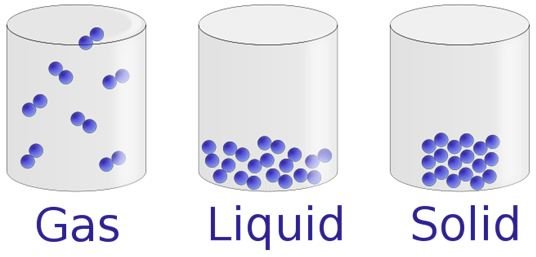
Highlight #4: Three States – Not Solid, Liquid, and Gas!
When using Git, it is important to keep track of what’s going on with your files as you use Git to take snapshots of your progress. The files of Git can exist in one of three states: committed, modified, and staged. When your files are committed, that means the files have been safely stored in the database. When your files are modified, that means that the files have been changes, but they have not yet been committed, or safely stored in the database. Finally, when your files are staged, that means they’ve already been modified, and are now marked to be sent into the next commit snapshot—or, in other words, designated to be part of the latest version Git will store in the database.
This topic interests me because I was curious to know how Git handles data. It is relevant to the course because as students use Git, it is important to know what is happening to the files in their projects, so they can keep better track of them and ensure they don’t slip up and miss a step in saving their projects along the way.

Highlight #5: Git this Repository!
What exactly is a repository? A repository is essentially a directory that stores all the latest files of a project. When obtaining a repository for Git, one can do so in one of two ways: one, by taking a local directory that isn’t currently on version control, and turning it into a Git repository, and two, by cloning an existing Git repository from somewhere else. It is important to know that files in the repository exist in two states: tracked and untracked. The tracked files are the ones Git is aware of—in other words, Git knows these files exist, because they had been recorded in the latest snapshot of the project. Untracked files are everything else that Git isn’t aware of yet: files that weren’t found within the last snapshot and haven’t been staged for committing either.
This topic interests me because in order to pursue my understanding of Git, I have to learn about repositories and how they work. It is relevant to the course because knowing how to use repositories are a key element in using Git.